Setting up Ergon
Create an account
- Open the app and choose Create an account. On iOS the label reads Create an account with email. Enter your email address and date of birth.
- Ergon emails you a six-digit verification code. Enter it.
- Set a password of at least eight characters.
That is the whole account: an email and a password. On iOS, Continue with Apple is the other way in. You still add your birthday, but there is no code or password. See Sign in with Apple. Concept2 is a separate, optional connection. Accounts for athletes aged 13 to 17 start private.
Every new account starts with 14 days of full Premium, no card needed. See Billing & subscriptions.
Connect your data
On first launch, Ergon offers two ways in. Pick either, or both.
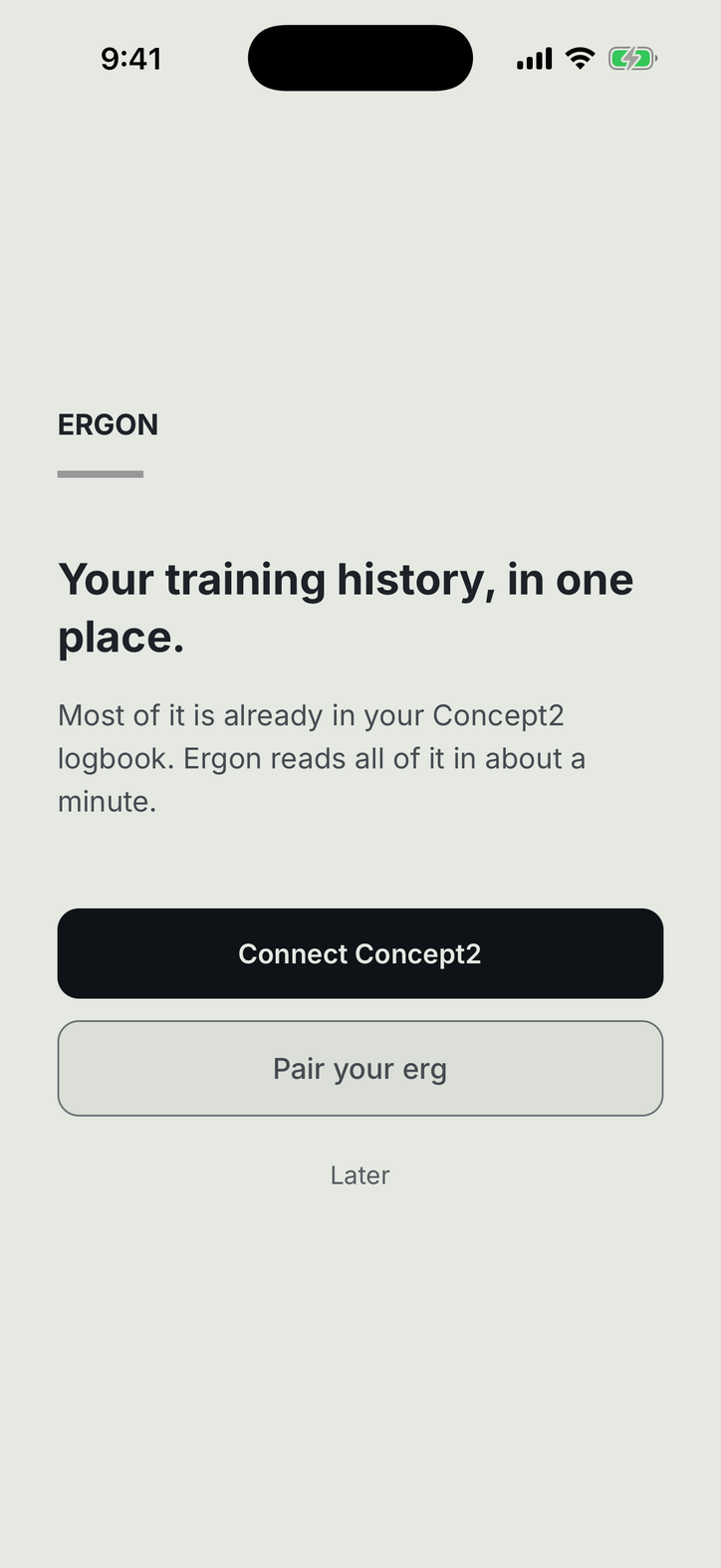
Connect Concept2 links your Logbook account and pulls your workout history: every past result, then new ones as they appear. If you have rowed with ErgData or logged on concept2.com, this is where your history lives. See Connecting Concept2.
Pair your erg connects Ergon to the PM5 monitor over Bluetooth. Ergon then records workouts live, stroke by stroke, with heart rate and force data the Logbook does not carry. See Pairing your PM5.
Later skips both. You can connect either one at any time from Settings.
Row your first piece
With a monitor paired, open the Workouts tab, pick a piece or build one, and send it to the erg. Or set the workout up on the PM5 itself; the live screen opens on its own. See Live workouts.
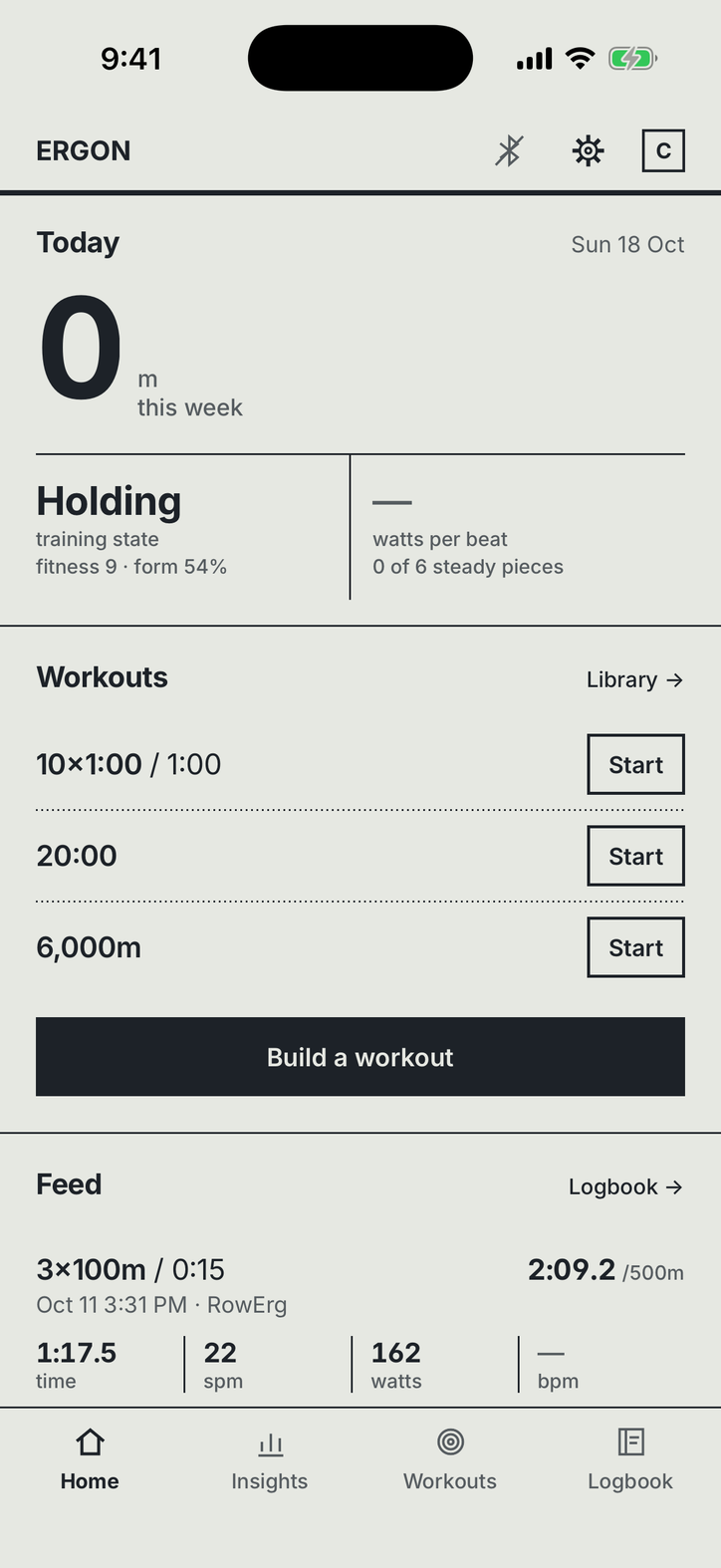
The finished piece lands on Home and in the Logbook tab, with splits, zones and load. Workouts synced from Concept2 arrive the same way after a pull to refresh.
Write to support@ergon.training. A human reads every message, usually within one business day.